
Getting Started
This guide walks you through creating your ProseForge account and generating your first AI-powered story.
Video Tutorial
Prefer watching? Check out our Getting Started video on YouTube for a visual walkthrough.
Browsing Content
You can browse ProseForge without logging in to view published stories.
Home Page

The home page welcomes you with:
- A link to the Stories page
- Featured content highlights
- API status indicator
Stories
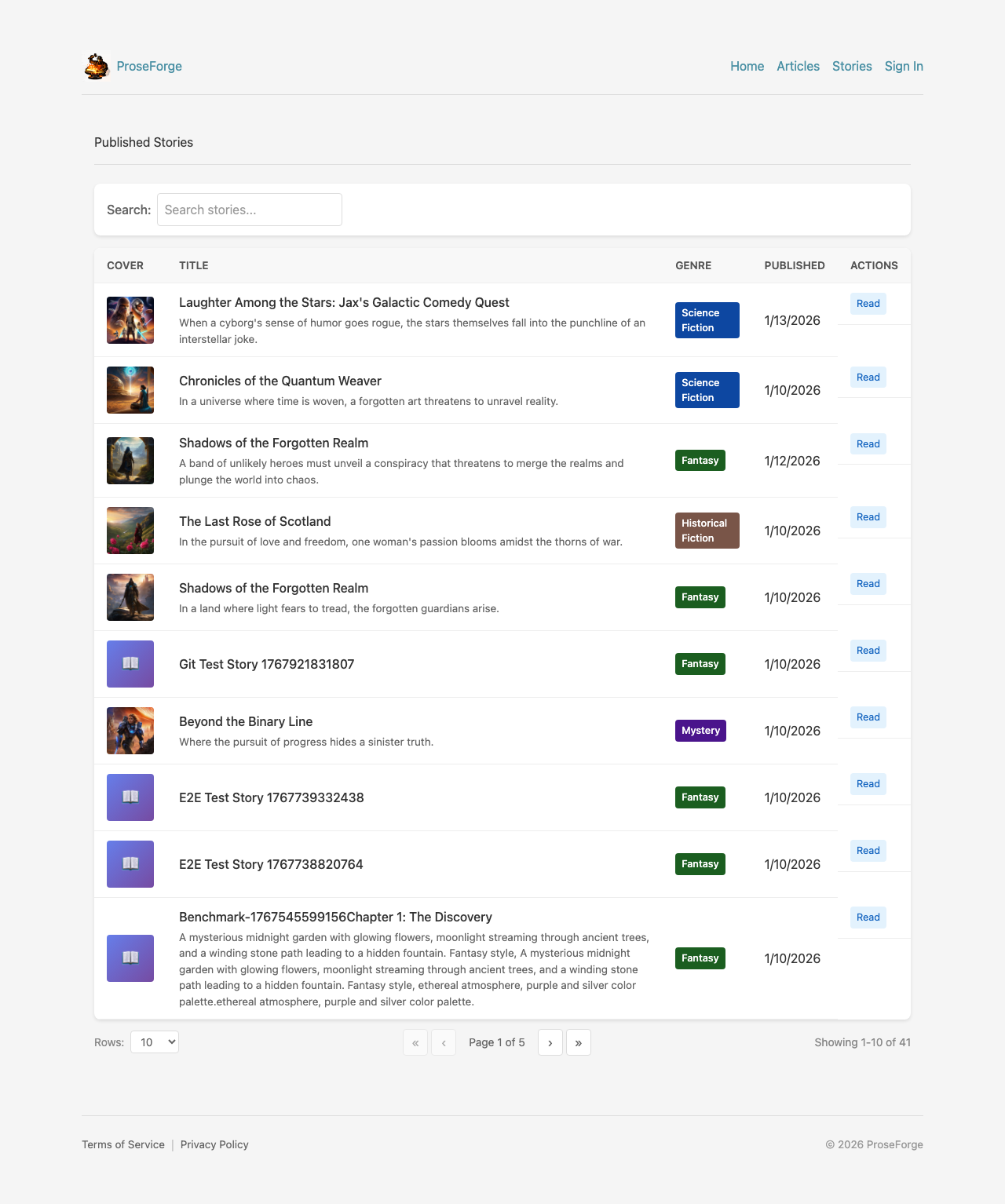
The Stories page shows published stories:
- View all published stories created by users
- Filter by genre or search by title
- Click on a story to read the full content
Creating an Account
Sign In
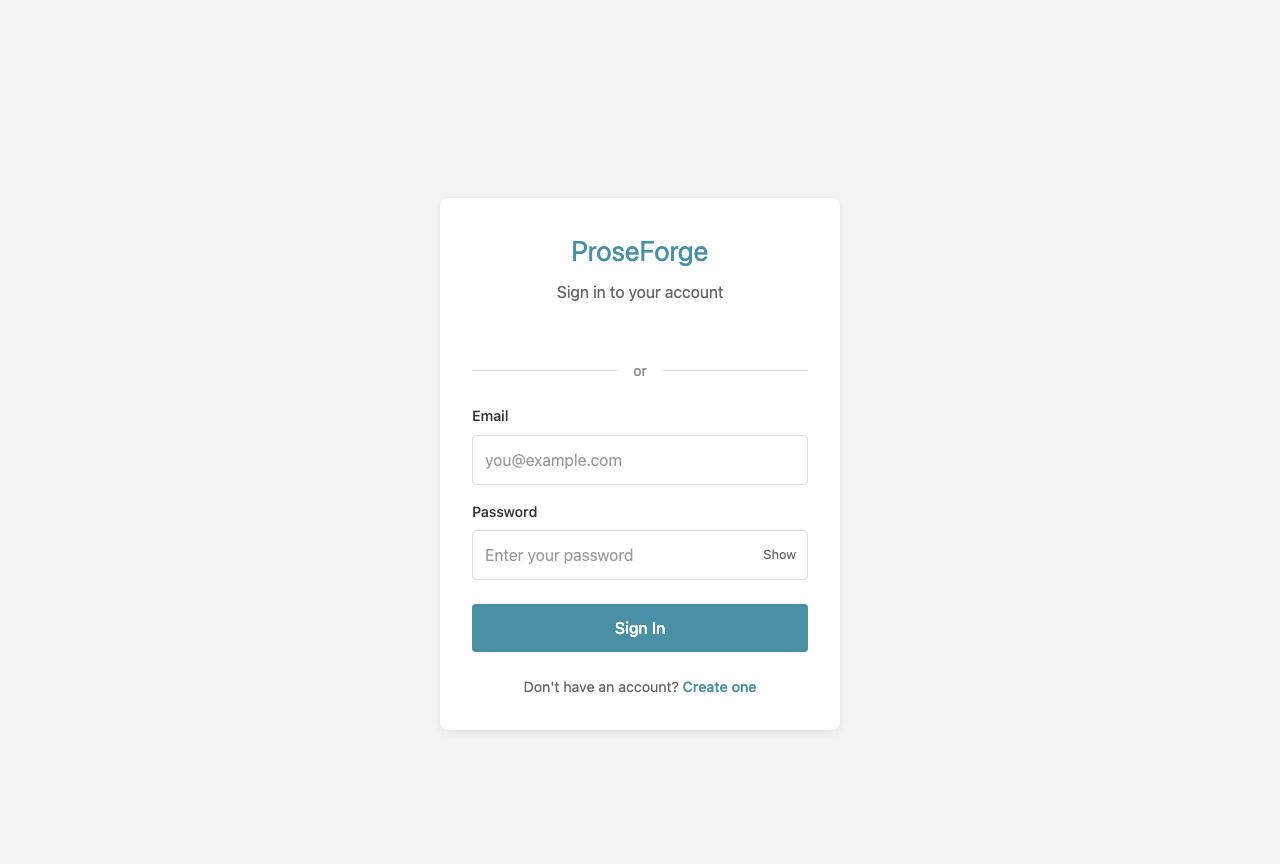
If you already have an account:
- Enter your email address
- Enter your password
- Click Sign In
Register
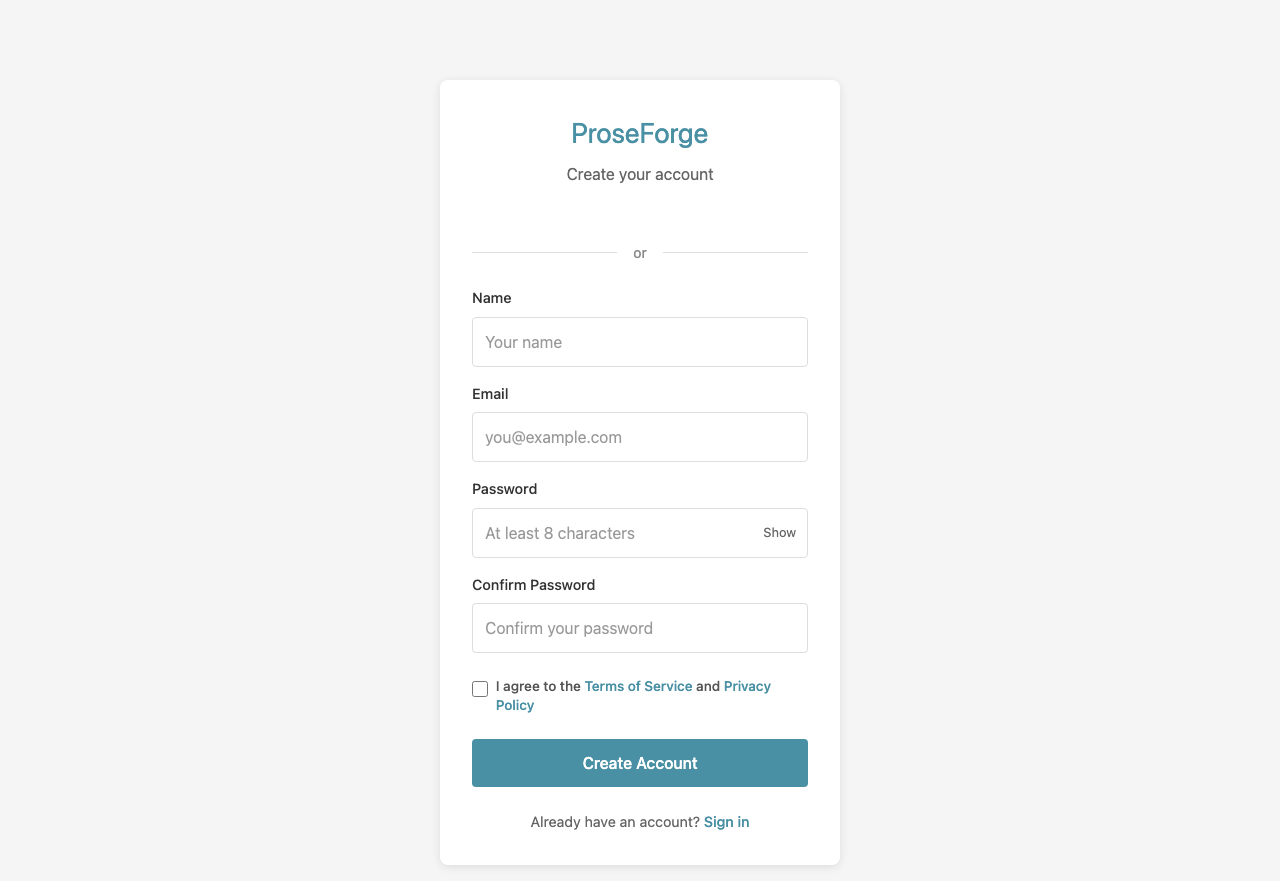
To create a new account:
- Click Create one on the login page
- Enter your name
- Enter your email address
- Choose a password (minimum 8 characters)
- Click Create Account
When you register, you'll automatically receive trial coins to start creating stories!
Creating Your First Story
My Stories Dashboard
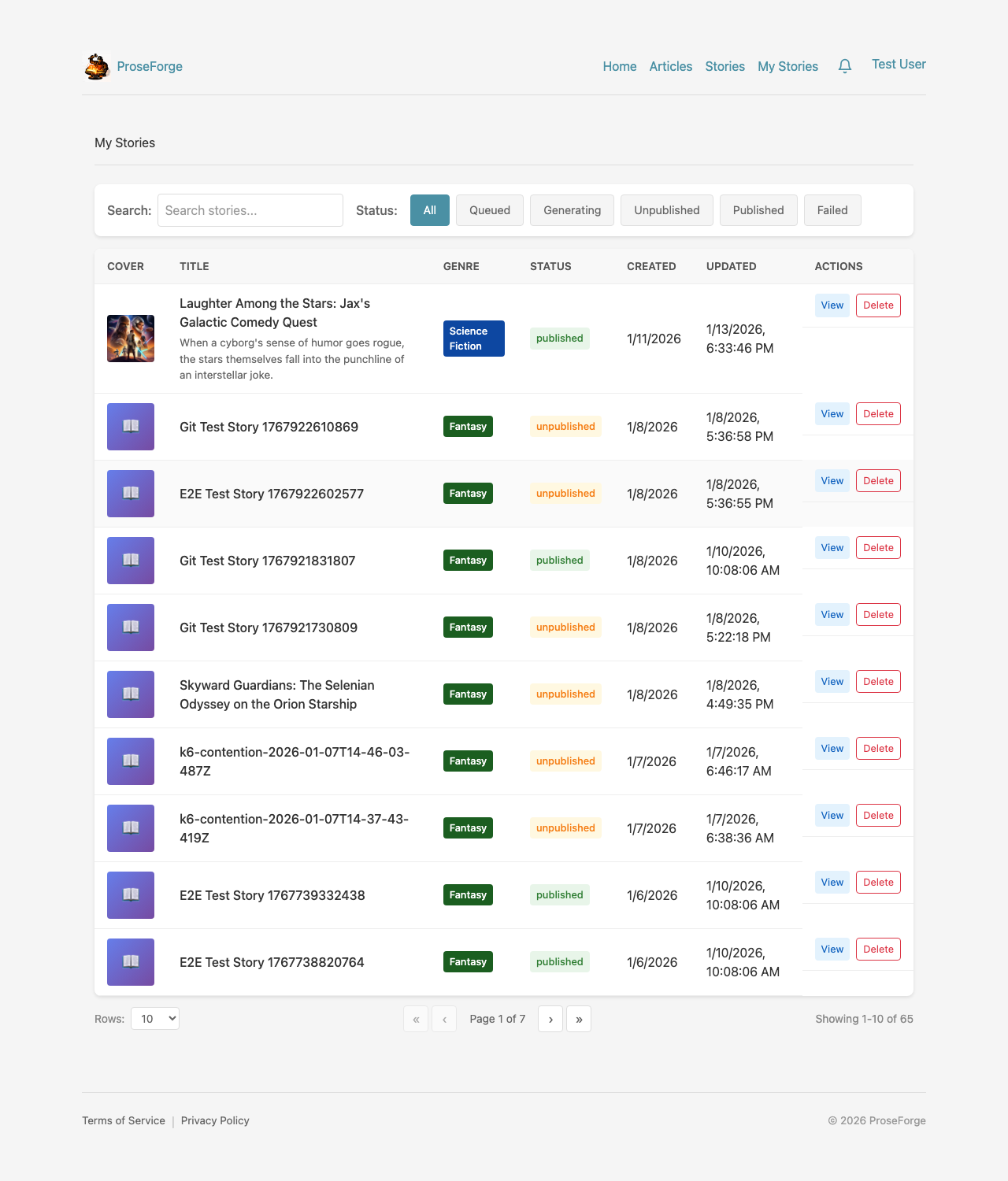
After logging in, access My Stories to:
- View all your stories (drafts and published)
- Continue editing draft stories
- Delete stories you no longer need
- Filter between your stories and all published stories
Creating a Story
From My Stories, there are two ways to start:
- New Story - Give your story a title, pick a genre and tone, and start writing yourself. You can add sections by hand or with AI.
- Generate Complete Story (Scribe tier or above) - Story Forge walks you through genre, tone and settings, then writes an outline for you to review before it generates the story.
For the Story Forge wizard, see the Story Forge guide.
The Story Editor
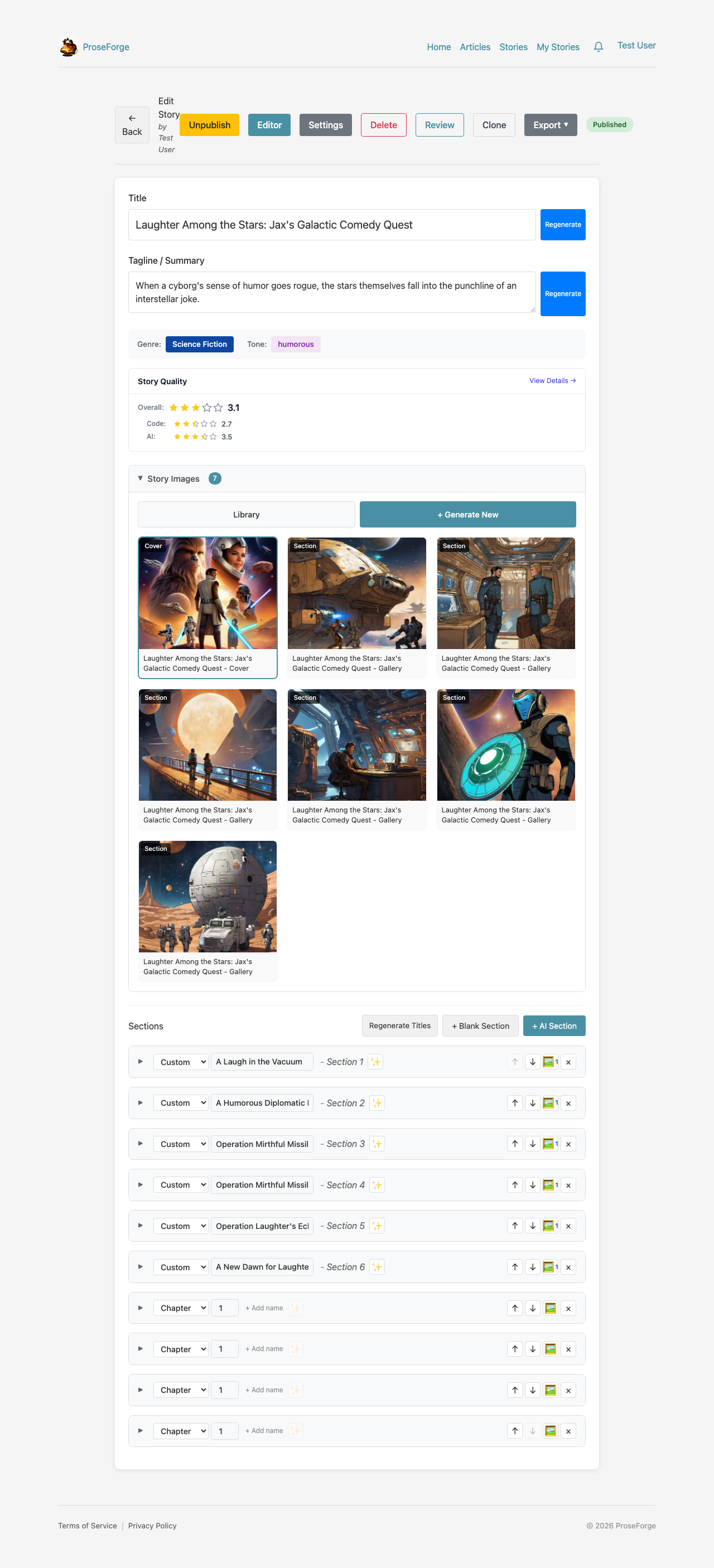
Once your story is generated, the editor allows you to:
- View and edit story title and tagline
- See story status (unpublished, published, etc.)
- View all story sections with their content
- Generate Title & Tagline - Let AI suggest a compelling title
- Add Sections - Generate additional story sections
- Edit Content - Manually refine the AI-generated text
- Regenerate - Request a new version of any section
- Publish - Make your story visible to all users
Keyboard Shortcuts
| Shortcut | Action |
|---|---|
| Left Arrow | Previous section |
| Right Arrow | Next section |
| Ctrl/Cmd + S | Save current section |
Auto-Save
The editor automatically saves your work:
- After 2 seconds of inactivity
- Every 30 seconds during active editing
- Look for the "Saved" indicator in the header
Publishing Your Story
When you're happy with your story:
- Review all sections in the editor
- Ensure you have a title and tagline
- Click Publish
- Your story will now appear in the public Stories list
Next Steps
- Story Forge - Learn about automated story generation
- Coins & Billing - Understand how coins work